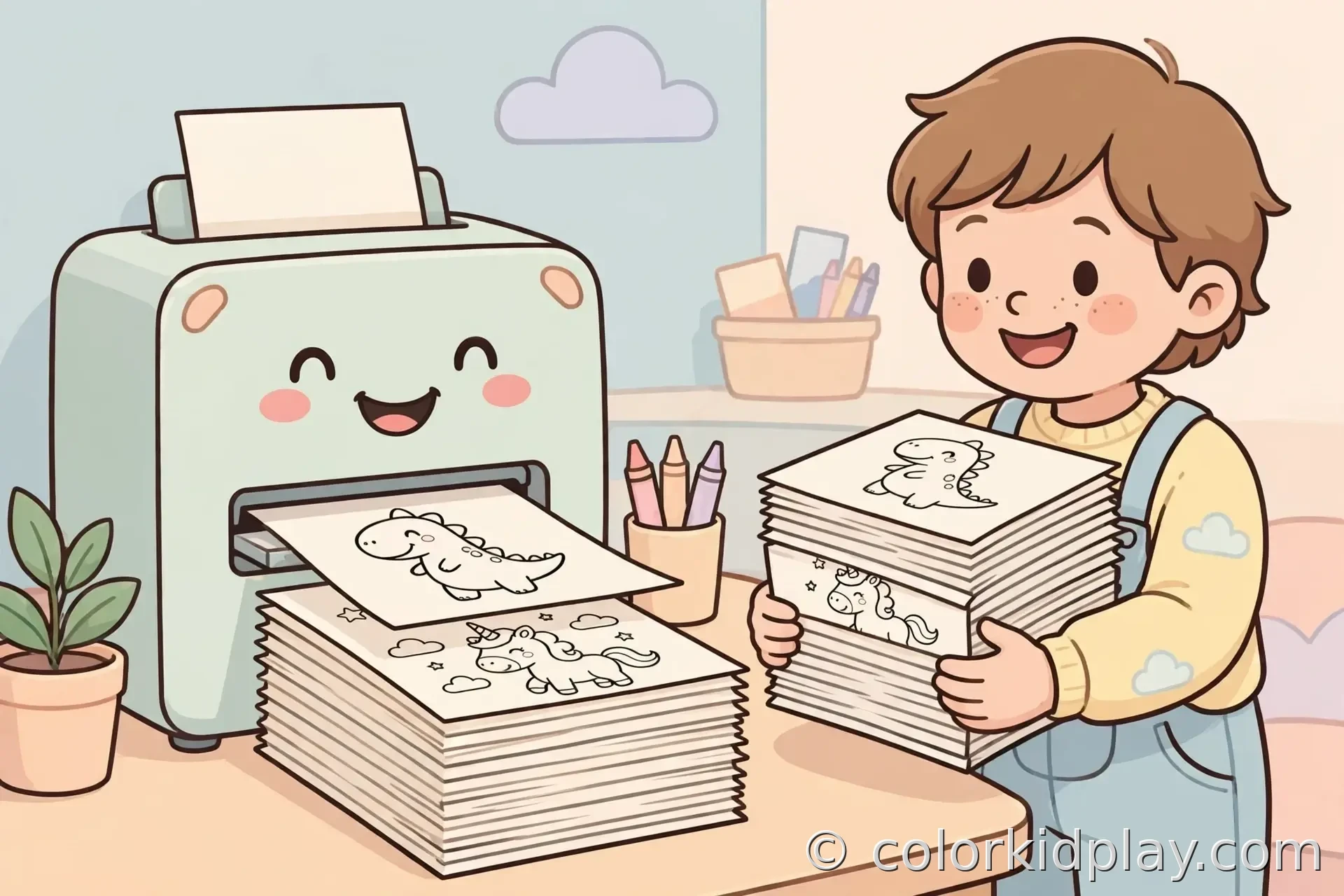
Printing one coloring page is easy. Printing a whole multi-page PDF — and turning it into something that feels like an actual little book — takes a few extra decisions: which pages to print, single or double-sided, and how to hold it all together. Here is the full workflow, from download to finished book.
Step 1: Open the PDF and Pick Your Pages
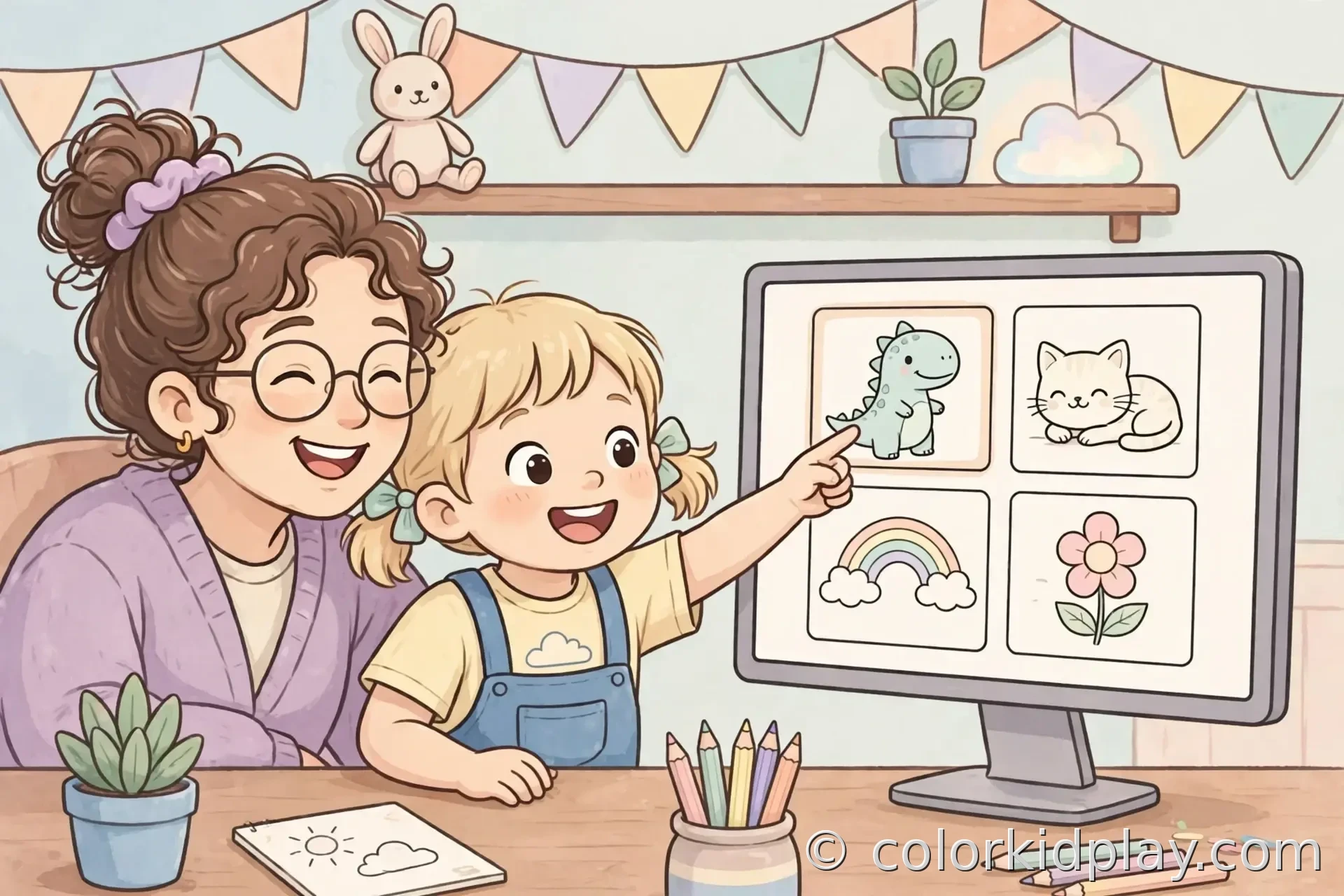
Open the PDF in a proper reader — Adobe Acrobat Reader (free) on Windows or Preview on a Mac. Before printing everything, scroll through and note which pages your child actually wants. There is no rule that says a 30-page PDF must become a 30-page printout. In the print dialog you can enter specific pages (“Pages: 3-8, 12”) instead of “All,” which saves a surprising amount of ink and paper.
For a real book feel, keep the total page count at a multiple of four if you plan to fold and staple it later — booklet layouts need groups of four. Eight, twelve, or sixteen pages make tidy little books. Our T-Rex coloring pages and unicorn coloring pages make great themed booklets: pick eight dinosaur pages, and you have a dino book for a road trip.
Step 2: Decide Single-Sided or Double-Sided
Single-sided is the safer default for coloring books. Marker ink bleeds through thin paper, and even colored pencils press through. Printing on one side only means every picture gets a clean, blank backing — no ghost images from the reverse side, and no ruined page on the flip side of a favorite drawing.
Double-sided works if the kids color with crayons or light colored pencils, and it halves your paper use. If you go this route, use heavier paper (28 lb or more — see our paper guide) and leave “Flip on long edge” selected so the backs are not upside down.
For young kids and markers, single-sided wins every time. Print the cover on cardstock for extra sturdiness. If you are printing for a classroom, single-sided also means every student can color without waiting for pages to dry, and teachers can photocopy individual pages later.
Step 3: Set Your Print Options
The same settings from our home printing guide apply here, page after page:
Paper size matching your tray (Letter in the US, A4 elsewhere). Orientation portrait for most pages. Scaling “Fit to page.” Color Black and White. Quality Normal or Best — never Draft, since faint lines across sixteen pages is sixteen disappointments.
One addition for multi-page jobs: print one page first as a test. Check that it fills the sheet, the lines are dark, and nothing is clipped. Only then commit to the full run. If your printer is slow, send the job and walk away — come back to a stack.
Step 4 (Option A): The Simple Stack — Binder or Folder
The zero-fuss book: print your pages single-sided, stack them, and slide them into a clear folder, a slim binder, or a presentation folder with pockets. Add a cover page printed on cardstock — a title like “Emma’s Dinosaur Book” with a cute kitten or cat page works for any theme. This method survives toddlers, travels well, and lets kids pull out individual pages to color flat.
Step 4 (Option B): A Real Booklet With Acrobat’s Booklet Feature
If you want pages that open like a real book, Adobe Acrobat Reader does the hard part for you. In the print dialog, look under “Page Sizing & Handling” for the Booklet option. It automatically shrinks and rearranges your pages so that when you fold the stack in half, everything lands in the right reading order.
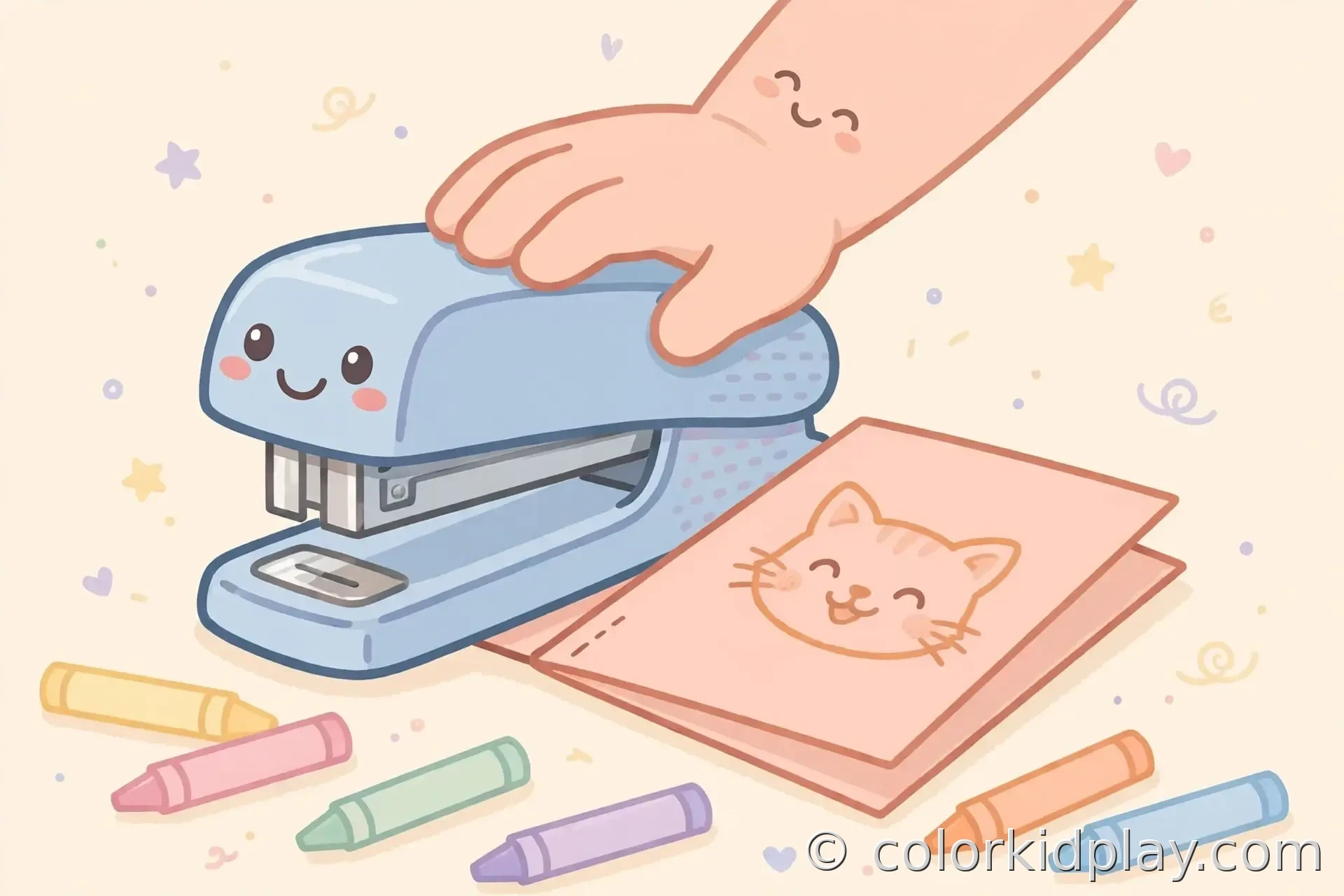
The recipe: print double-sided with booklet mode, using page counts in multiples of four. Stack the sheets in order, fold the whole stack down the middle, and staple along the fold — two or three staples, pressed flat. (A long-reach stapler helps; a regular one can usually reach the center of a half-letter booklet.) That stapled fold is a simple version of saddle stitching, the same binding real paperbacks use.
One caution: booklet pages are half-size (half of Letter or A4), which means smaller pictures — better for older kids and fine details than for toddlers with big crayons. For ages 2–4, stick with full-size single-sided pages in a folder.
Step 5: Add the Finishing Touches
A title page transforms a stack of printouts into a book. Let your child decorate the cover before you bind it — name, date, a drawing of their own. For a gift, add a “This book belongs to ___” line. And if you are making several books at once (classroom, birthday party favors), our guide to making a homemade coloring book has assembly-line tips.
Store finished books upright on a shelf rather than stacked flat — stacked coloring books warp over time, especially if any page got heavy marker use. A little bookshelf of homemade coloring books is also a lovely sight: proof of a very productive rainy season.