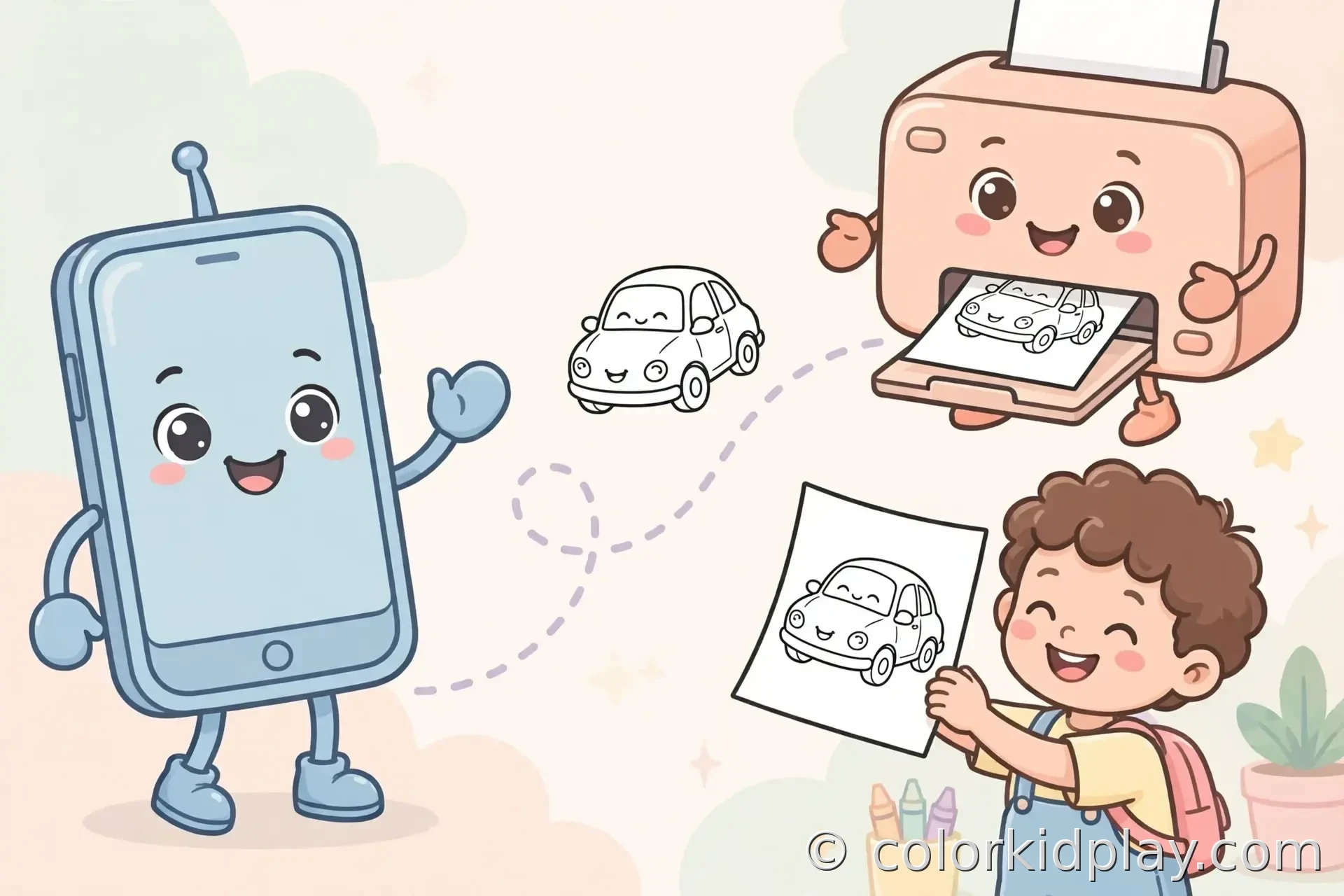
PDFs are the easiest way to print, but sometimes a coloring page only comes as a PNG image — or you found one on your phone and just want to print it from there. PNGs print beautifully too. They just need one thing a PDF does not: you have to tell the printer how to size them, because an image file carries no page size of its own.
Step 1: Save the Full-Resolution Image
Before anything else, make sure you are saving the real file, not a shrunken preview. On a coloring page site, look for a “Download PNG” or “Save image” button. If you are long-pressing an image on a phone or right-clicking on a computer, check that you are saving the full-size version — a small thumbnail will print blurry no matter what settings you use.
Do not screenshot the page as your main method. A screenshot captures whatever is on screen at a low resolution, and the quality drop shows up in print. Downloading the actual PNG file is always better — PNG is a lossless format, so the file you download is
exactly as sharp as the original.

Step 2: Get the Image to Your Printer
Where the file lives determines your next move:
Printing from a computer (easiest). If the PNG is on your computer, just double-click it to open in your default image viewer — Photos on Windows, Preview on a Mac — and hit Ctrl + P / Command + P. Everything below applies the same way.
Printing from an iPhone or iPad. Find the PNG in your Photos or Files app, tap the Share icon, then Print. Select your AirPrint printer, confirm the paper size, and print. If your printer is not AirPrint-compatible, the printer manufacturer’s app (HP Smart, Canon PRINT, Epson iPrint, Brother iPrint&Scan) usually fills the gap.
Printing from an Android phone. Open the image in your gallery app, tap the three-dot menu, and choose Print. Your phone and printer need to be on the same Wi-Fi network. As with iPhone, your printer maker’s app is the backup plan.
No wireless printing at all? Email the PNG to yourself, save it from the email on your computer, and print from there. Or move it over USB, Google Drive, or AirDrop. The thirty-second detour is worth it — a desktop print dialog gives you far more control than a phone does.

Step 3: Size the Image to Fill the Page
This is the step that trips people up, and it is the only real difference from printing a PDF. In the print dialog:
Set scaling to “Fit to page.” Without this, the printer prints the image at its raw pixel size, which can come out either tiny or spilling off the edges. “Fit to page” scales the image to your paper while keeping its proportions — no stretching, no cropping.
Set orientation to portrait for vertical pages like our car coloring pages and easy cat pages. Check the preview thumbnail in the dialog — it should show the whole picture filling most of the sheet.
Set color to Black and White and quality to Normal or Best, just like any coloring page. Our full settings checklist lives in the home printing guide if you want the complete routine.

Quality Tips Specific to PNG
Check the resolution before printing big. A good printable PNG is at least 1500 pixels on its longest side; for the crispest lines, 2000+ is better. If an image looks pixelated on screen when you zoom in, it will look pixelated on paper. There is no fix for a too-small source image — printing it larger just makes the blur bigger.
Do not print from inside a browser tab. If you opened the PNG directly in a browser window, use your system print dialog (Ctrl + P) rather than any website’s print button. Some sites add headers and footers that steal space from your page.
When a PDF is offered, take it. If the page offers both formats, the PDF is the safer print — its page size is fixed, so you skip the sizing step entirely. Our guide to printing PDF coloring books covers that workflow.
Quick Troubleshooting
Image prints small with huge margins? Scaling is not set to “Fit to page” — or you saved a thumbnail instead of the full file. Fix both.
Edges cut off? The paper-size setting in the dialog does not match your loaded paper, or “Fit to printable area” is what you need instead of “Actual size.” Check both.
Colors look wrong or washed out? The image may have a transparent or off-white background. Stick with black-and-white mode — it normalizes all of that and saves color ink too.
Once you have the PNG workflow down, it becomes second nature: save the real file, fit to page, glance at the preview, print. Try it with our butterfly coloring pages — they look great straight from a phone.